
Customize Your Products With Ease:
How to Modify Colors and Add QR Codes
At 123Print®, we are dedicated to revolutionizing the customization of printable products online, providing unparalleled options to create truly unique and personalized items easily.
Color Select Products
We are thrilled to introduce our new line of Color Select products. Our new color changer spots that appear in the Product Editor for these products enable you to effortlessly modify the colors of our products with just a few clicks!
Instead of searching through a selection of products to find the perfect color, you can now make easy adjustments to the color of your choice in seconds.
Check out one of our sleek new business card designs that features these handy Color Select tools that enable you to instantly change the color of any of the elements of the design. You can select from our array of trusted hues in our standard color palette or add custom colors to match your company’s branding.
We will be adding our new Color Select tools to more and more products in the upcoming weeks! Find our existing products that have this option now here.
How It Works
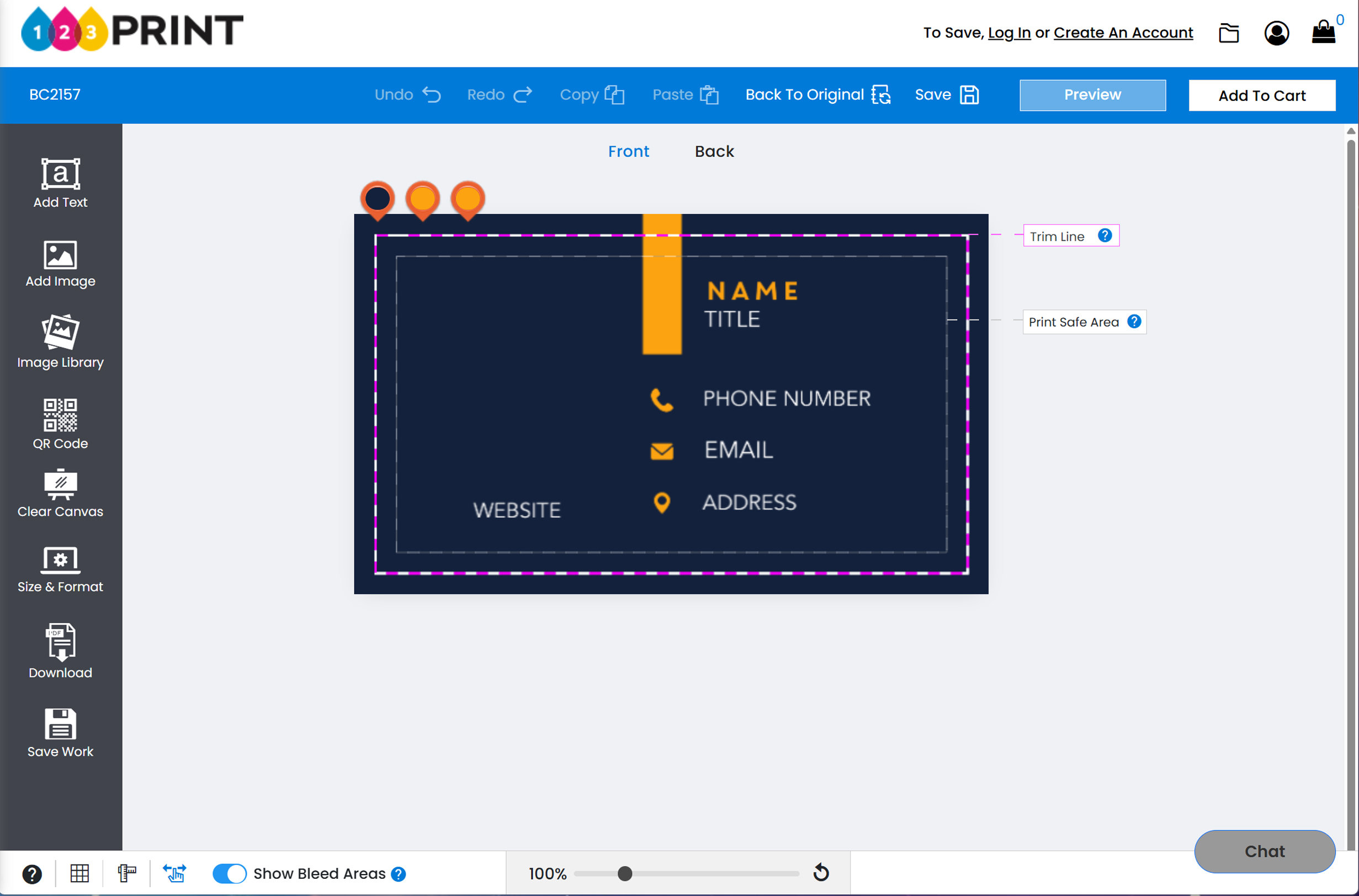
When a product opens in our Product Editor, you will see the color bubbles, called “color changer spots,” in the top left corner. The hues in the color changer spots correspond to the colors currently used for the design’s different elements.
To change one of the colors:
- Click on the color changer spot. The color options panel should pop up.
- Select a new color from our “Standard Colors” palette, or click ‘Add New Color’ on the bottom right of the color palette window to select your color using a hex, Pantone, RGB, or a CMYK code. Note that only one of these options is necessary to add a new color. Once you have chosen a color, you will see the change instantly in the editor. Then, you can repeat the process for any other color changer spots so that all of the colors on the product are to your exact specifications.
It is that easy. Click on the color changer spots, change the colors, and experience the real-time transformation of your product’s appearance right before your eyes.
Now that you know this practical new feature and its functionality, let’s discuss the applications.
Consistency and Branding
Maintaining a distinct brand image through consistent color palettes and fonts across your custom printing projects is crucial for fostering brand recognition. With our new Color Select products, you can ensure that all of your printed products match precisely. Create a cohesive color palette for your business cards, flyers, and other promotional materials, and establish a strong visual identity that will leave a lasting impression on your target audience. Elevate your brand’s recognition by utilizing a consistent background color across all your printed products, strengthening brand recall and instilling a sense of professionalism and reliability in customers’ eyes.
Remember that you can also change the typefaces, font sizes, and font colors and easily upload logos, icons, and images from the product editor. Should you ever need assistance in the customization process or anything else on our site, our customer service and design team is always happy to help. Add special instructions to your order before submitting it, or contact us via live chat or telephone.
Endless Creative and Marketing Possibilities
Our Color Select customization feature opens up a world of creative possibilities. Whether designing eye-catching business cards, flyers, or captivating invitations, the ability to effortlessly customize the ink colors allows you to create products that truly reflect your unique style and message.
The highly customizable nature of our products also allows you to transform any of our products to suit your individual needs. Some people like to use our business card designs to make handy giveaways and coupons, for example. Adding a QR code to one of these designs is becoming the standard for these marketing materials.
QR Codes
A QR code, short for Quick Response code, is a two-dimensional barcode that can be scanned using a smartphone or a QR code reader. It contains encoded information, such as website URLs, contact details, or promotional messages. QR codes have become an effective marketing tool for printed materials like business cards or coupons due to their convenience and versatility. By including a QR code on these items, businesses can provide a convenient way for potential customers to access additional information or special offers with just a scan. QR codes enable quick and direct engagement, bridging the gap between offline and online marketing efforts. They allow businesses to deliver targeted content, track interactions, and measure the effectiveness of their campaigns. With their ease of use and potential for creative integration, QR codes have become invaluable for enhancing customer engagement and driving results in marketing initiatives.
To add a QR code to any product on the 123Print® website, follow these simple steps:
- Initiate the personalization process by opening any product in our Product Editor. You can access the Product Editor by clicking on any product image on the category page and then clicking on the blue ‘Customize’ button that appears on the product options page.
- Click the ‘Add Image’ icon on the top left to open the Customer Uploads window.
- Upload your QR imageby selecting ‘Upload Files’ or simply dragging your image into the window.
- Click on your QR image once it appears in the Customer Uploads window to add it to your product. You will want to select the ‘Drop Image & Scale’ option for a QR code, not the ‘Set As Background’ option. Once the QR image is added, you can adjust the sizing and placement to your liking.
File Size and Type
When creating printable products, using only clear, detailed, and high-quality images is vital. For optimal results, ensure that all images have a resolution of at least 300 dpi. QR codes are no exception! A crisp and clear image is essential to guarantee the proper functioning of the code. While TIF, JPG, PNG, or PDF formats are all acceptable, I recommend using JPG or PNG for QR codes whenever possible. It is important to note that a JPG may have a white background surrounding the QR code, which will be printed unless the background of the product you are customizing is also white, or unless you utilize the ‘Remove Background’ option that appears automatically after you select ‘Drop Image & Scale’. In cases where the product does not have a white background, I suggest using a PNG file with a transparent background to avoid any unwanted white areas.
However, if all of this seems a bit technical for you, never fear – we are here to assist! Simply add the image to your order and include a note in the special instructions to request our assistance checking the image quality or removing any white background.
Innovation and convenience are at the forefront of our mission at 123Print®. Our Color Select tools simplify the customization process, allowing you to easily modify colors, resulting in personalized printed products that capture your unique style. Seamlessly incorporating QR codes alongside your preferred images and icons will enable you to engage your audience with additional information and exclusive offers effortlessly.
Embrace the endless possibilities of customization and enhance your brand’s recognition with 123Print®!